
 USD
USD


StickerYou Blog
How to Use Adobe Illustrator's "Image Trace"
October 26, 2021
Share this post:
Ever wanted your image to be sharper or had a print shop tell you your image is “too low res”? Well, image tracing can help. The Image Trace feature in Adobe Illustrator can take a raster image (one made of pixels) and convert it into a vector image (one made of paths). A vector image can be printed at any size, and is easy to adjust..jpg)
Follow these steps to ensure you transform your raster image into a vector image properly, using the Image Trace tool in Adobe Illustrator
Lesson 1: Preview
Open the Image Trace panel by going to the top bar navigation and selecting “Window” > “Image Trace” and click the “Preview” box so a checkmark appears.This will trigger Image trace to produce a vector version of your image. If you like how it looks, you could skip to Lesson 4, but if not keep reading along.
Troubleshooting: All the buttons greyed out or unclickable? Make sure the raster image you want to trace is selected.
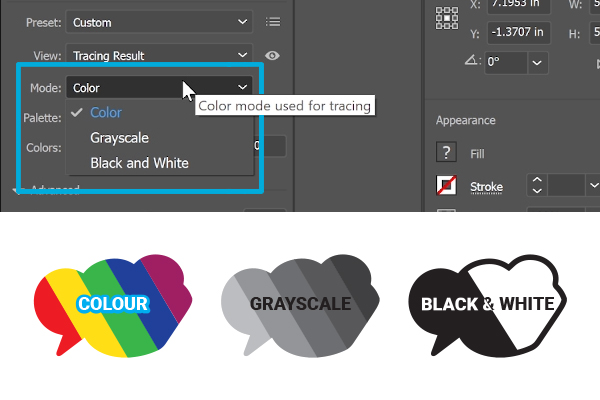
Lesson 2: Select Your Mode
In the Image Trace panel click the “Mode” drop down menu to select a suitable option. For each option, the slider that appears below will show either: “Color”,”Grays”, or “Threshold” and adjusting the cursor’s position will affect your vector image.While each option changes a different aspect of the image the overall effect is the same: lower on the scale makes your image more simple, and higher makes it more intricate.
It’s Easy As Pie: When adjusting a color image for print, remember that having too many colors can affect your print quality.

Lesson 3: Advanced
If adjusting the mode slider isn’t enough you can perfect your trace by selecting the "Advanced" extension on the Image Trace panel. This will open up the sliders for "Paths", "Corners", and "Noise". These sliders, much like the mode slider, can affect each image differently - so it’s good to experiment with different settings to achieve the best result.
Let’s explore those options:
A. Paths: Too low a path and your image could become contorted. Too high and it could become jagged.

B. Corners: Less corners will soften your image and round out edges. More corners will sharpen slight curves into points.

C. Noise: A lower number will cause more detail to be pulled into the vector trace. Sometimes this means picking up unintended shapes, and other times it is a welcome addition. A higher number will result in the program focusing on larger shapes and expelling smaller aspects.

Lesson 4: Expand
It’s time to bring your new vector image to life! Go back to the top bar navigation and select "Object" > "Image Trace" > "Expand".Now you’re ready to make edits, or just save as a .pdf, .svg. ai, or .eps file.
Is your image ready to go? Upload it to our Sticker Maker to transform it into affordable custom stickers or any other custom products of your choice!
Want more great ideas and inspiration? Follow us on social, or sign up for our newsletter for amazing deals delivered directly to your inbox.


StickerYou blog posts are written and published by members of the StickerYou team at our headquarters, located in the beautiful city of Toronto, Canada.
Follow us
Featured Posts
Packaging & Branding
- Game On: How Small Businesses Can Cash In on Fall & Winter Sports Season
- Gearing Up for the Holidays: How Small Businesses Can Prep Early (and Stand Out)
- Thinking About a Brand Refresh? Here's How to Try It Before You Buy In
- 9 Creative Ways To Use Roll Labels
- Introducing: Image Transfer (DTF) Iron-Ons
Tips & Tricks
- Game On: How Small Businesses Can Cash In on Fall & Winter Sports Season
- Gearing Up for the Holidays: How Small Businesses Can Prep Early (and Stand Out)
- AI Design Tools vs. Human Designers: A Side-by-Side Breakdown
- Why Nonprofit Branding Matters (and How to Do It Affordably)
- How Colleges Are Using Custom Stickers, Labels & Iron-Ons This Back-to-School Season
Customer Spotlight
- Customer Spotlight: Preserving Indigenous Culture & Language with Creative Cub 🐾
- Customer Spotlight: Keeks Corner | StickerYou
- Customer Spotlight: Juicery Harlem
- Customer Spotlight: Horseshoe Valley Resort Geared Up for Crankworx with StickerYou 🚵♂️
- How to Start a T-Shirt Business at Home Using DTF Iron-On Transfers from StickerYou
Innovation
- TattooYou 101: Ink Your Entire World
- Our Products’ Durability: Testing and Results
- Benefits of StickerYou for Custom Products
- Permanent Stickers: The Adhesive That Won’t Quit
- 5 Creative Ways Brands are Using Custom Fuzzy Stickers
Guides/Tutorials
- AI Design Tools vs. Human Designers: A Side-by-Side Breakdown
- Why Nonprofit Branding Matters (and How to Do It Affordably)
- How Colleges Are Using Custom Stickers, Labels & Iron-Ons This Back-to-School Season
- Clear Decals vs. Vinyl Graphics: Which is Best for Your Car?
- Custom Sticker Printing FAQs: Everything You Need to Know