
 USD
USD


Last Updated: 6/24/2024 3:02:32 PM
How do I check the resolution of my images?
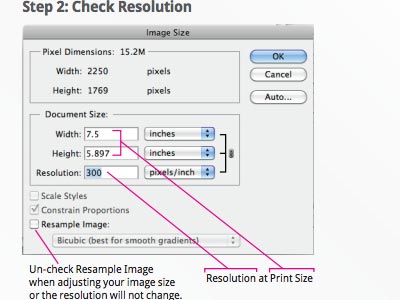
File resolution - also known as DPI (Dots Per Inch) or PPI (Pixels Per Inch) - refers to the number of dots or pixels in an image. Generally, the more dots per inch, the more detail captured and the sharper the actual image.
For an image to print properly, the image resolution must be at least 300 dots per inch (DPI) at 100% of the final output size.
If your file is not 300 dpi, you can not simply change a low resolution image to a higher one by increasing the DPI in your imaging program. The printed result will be a very blurry image.
As such, it's important to start out with an image that has a resolution of at least 300 dpi. You may have to contact the original designer of your image to get a higher resolution file, or you can decrease the print size of your image.
Our editing tools will notify you if it detects that your image resolution is too low, and recommend the maximum size your image should be in order for it to print properly.
Download the attached PDF guide for checking the resolution for your JPG/PNG/GIF image upload using Adobe Photoshop.
Pricing
- How do I change the size of my sticker?
- How do I apply my temporary tattoos?
- How do I change the shape of my sticker?
- How do I apply my Iron-On Labels and Transfers?
- How to apply your Custom Vinyl Window Decal
Free Samples
- How do I place a re-order?
- How do I get in touch with StickerYou?
- Can I cancel or make changes to my order after it has been placed?
- What is StickerYou's return policy?
- If the color of my stickers are different than what I ordered what can I do?
Video Tutorials
See All ArticlesYour Account
- Why do I need a StickerYou account?
- How do I check my order status?
- How do I open an account?
- How do I create a new “My Stuff” album?
- What is the my stuff area of my account?